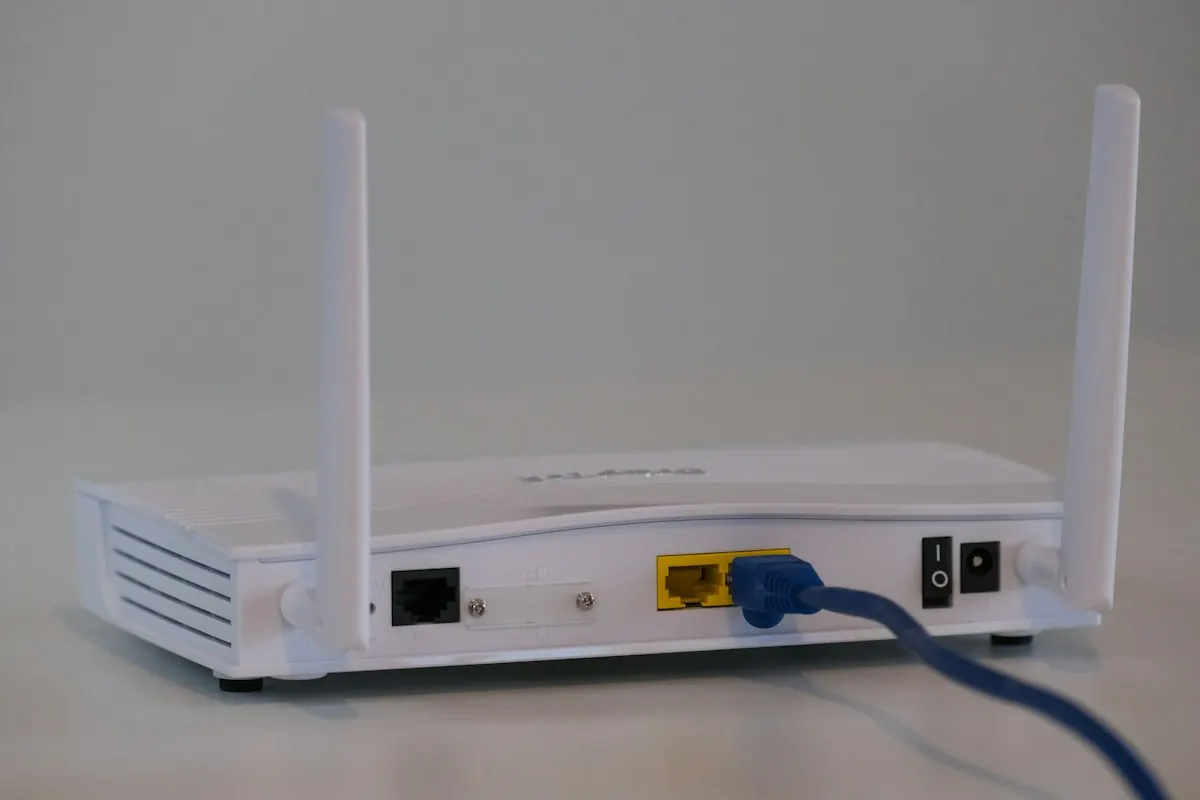
Many small office setups suffer from what I call "home-router syndrome." A business moves into a commercial space, plugs in a standard wireless router from their internet provider in a closet, and expects flawless coverage across the entire floor. Within weeks, employees complain about dropped Zoom calls, printing lag, and dead zones.
Wireless networking in a commercial environment operates on entirely different principles than a home network. Over my 18 years in network architecture, I have found that designing commercial Wi-Fi requires understanding standard types, channel capacities, and physical signal properties.
"Wi-Fi is a shared medium—it behaves like a single-lane highway. If one device is struggling with a weak signal, it slows down the highway for every other connected computer in the office."
1. Demystifying Wi-Fi Standards
Wi-Fi has evolved through multiple technical standards. You will often see these listed on routers and devices as letters:
- Wi-Fi 4 (802.11n): Released in 2009. While it introduced basic multi-channel support (MIMO), it is highly outdated. If your office devices are still relying heavily on "N-standard" access points, they are clogging up your internal network speeds.
- Wi-Fi 5 (802.11ac): The baseline standard for many offices today. It runs on the less crowded 5GHz frequency band, providing faster data rates and smoother connections. It is highly reliable for general document sharing and email.
- Wi-Fi 6 (802.11ax) & Wi-Fi 7: The modern business standard. Built specifically for high-density environments, these newer standards leverage advanced spatial multiplexing and open up the 6GHz spectrum band (following the Federal Communications Commission (FCC) 6GHz allocation) to handle dozens of simultaneously connected devices without bottlenecks, significantly reducing lag.
2. Common Sources of Office Interference
Wireless signals are radio waves, and they are easily disrupted by physical structures and electrical systems:
- Physical Barriers: While drywall allows signals to pass easily, concrete block walls, brick partitions, heavy glass doors, and metal filing cabinets degrade Wi-Fi signals significantly.
- Overlapping Channels: The standard 2.4GHz Wi-Fi band only has 3 non-overlapping channels (1, 6, and 11). If neighboring offices are using the same channels, their routers will interfere with yours, causing dropouts. Shifting your critical computers to the wider 5GHz or 6GHz bands is essential.
- Office Appliances: Microwave ovens, cordless phones, wireless security cameras, and even bluetooth headsets operate on the same 2.4GHz frequencies. If a employee heats up lunch and the Wi-Fi drops, a microwave frequency leak is the primary suspect.
3. Principles of Clean Network Design
To achieve reliable office Wi-Fi, you should avoid using a single central router. Instead, use multiple wire-connected Access Points (APs) distributed across your ceiling tiles. Ceiling mounts avoid low-level physical obstacles (like desks and cabinets), keeping line-of-sight pathways clear.
Furthermore, separate your guest traffic from your corporate database traffic. A secure guest Wi-Fi portal prevents client phones from exposing your main file servers to viruses.
Struggling with weak signals or drops in your clinic, office, or workshop? Take our quick 60-second IT Health Assessment to find critical weak points in your current network layout, or contact me directly to map out a reliable wireless solution.